Windows credential provider

Product overview

Windows sign‑in without the password.

OLOID Windows Login replaces the password prompt on the Windows lock screen with the credential a worker already carries — their face, their badge, a smart card, an NFC tag, a QR code from their phone, or a PIN.
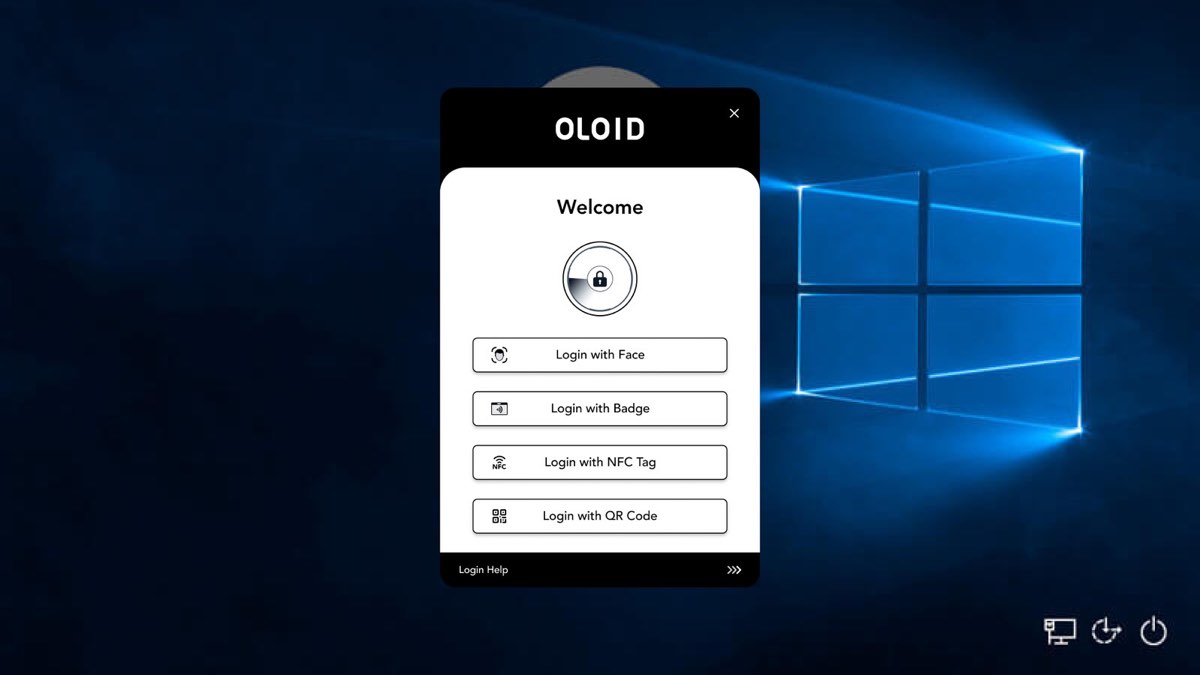
The OLOID login widget on a Windows lock screen, offering Login with Face, Badge, NFC Tag and QR Code.
01The widget takes over the lock screen and offers only the credentials the workstation is configured for.

Where it lives

Inside Windows, not beside it.

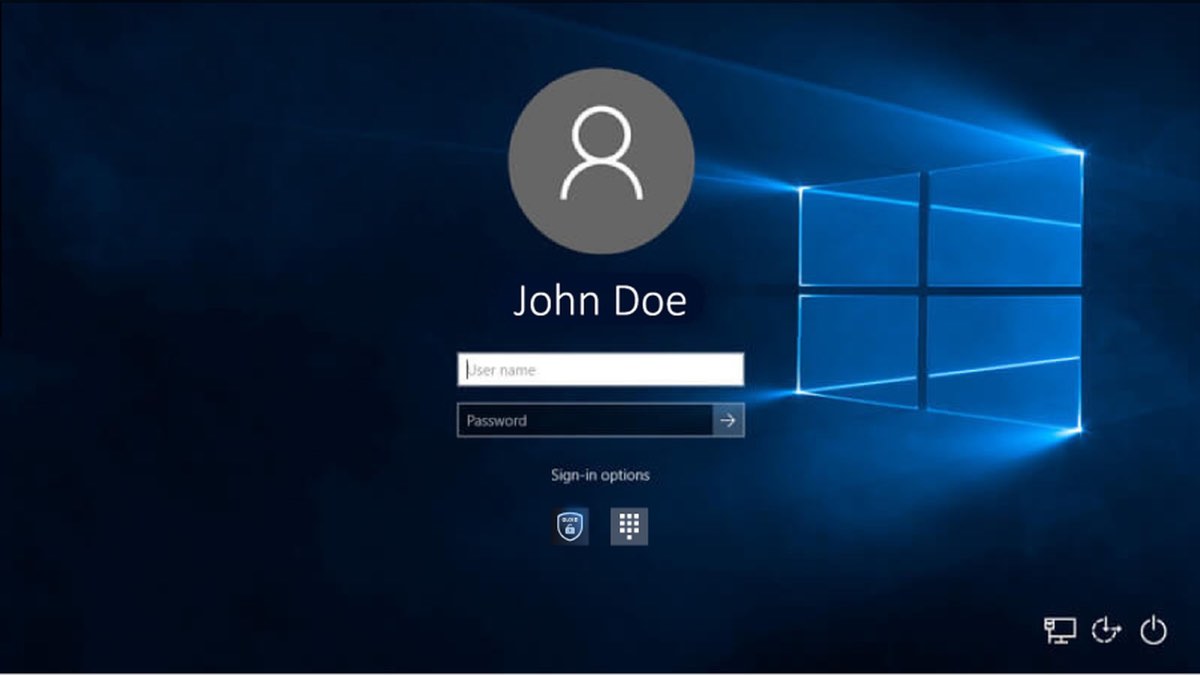
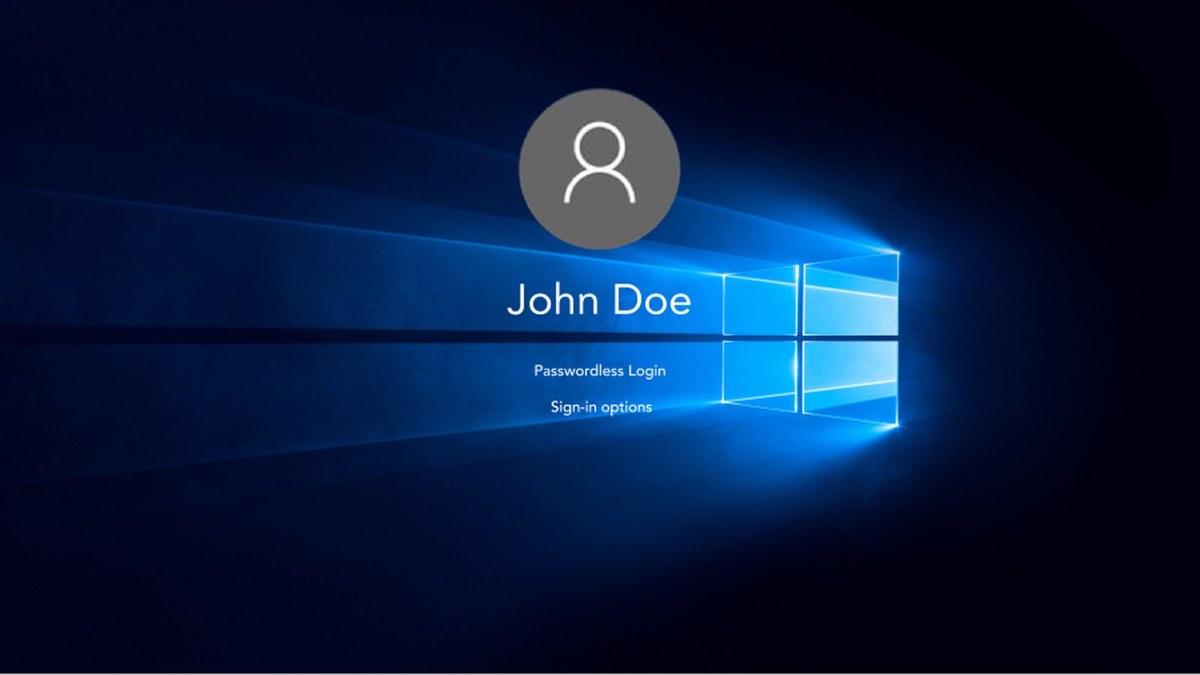
OLOID installs as a Windows credential provider. It appears in the same place a worker already looks for a way in — the lock screen — alongside password and PIN, with no separate app to launch first.

Windows lock screen for John Doe showing a Passwordless Login option.
02Passwordless Login, offered directly under the user's name.
Windows sign-in options row showing the OLOID credential provider tile next to the PIN tile.
03Or as a tile under Sign-in options, next to Windows PIN.

Credentials

Five ways in. Pick one.

An administrator decides which factors a workstation offers, so a warehouse floor and a nurses’ station can run the same client with different rules. Any of them can also sit second in a chain. Choose a factor to see what the worker sees.

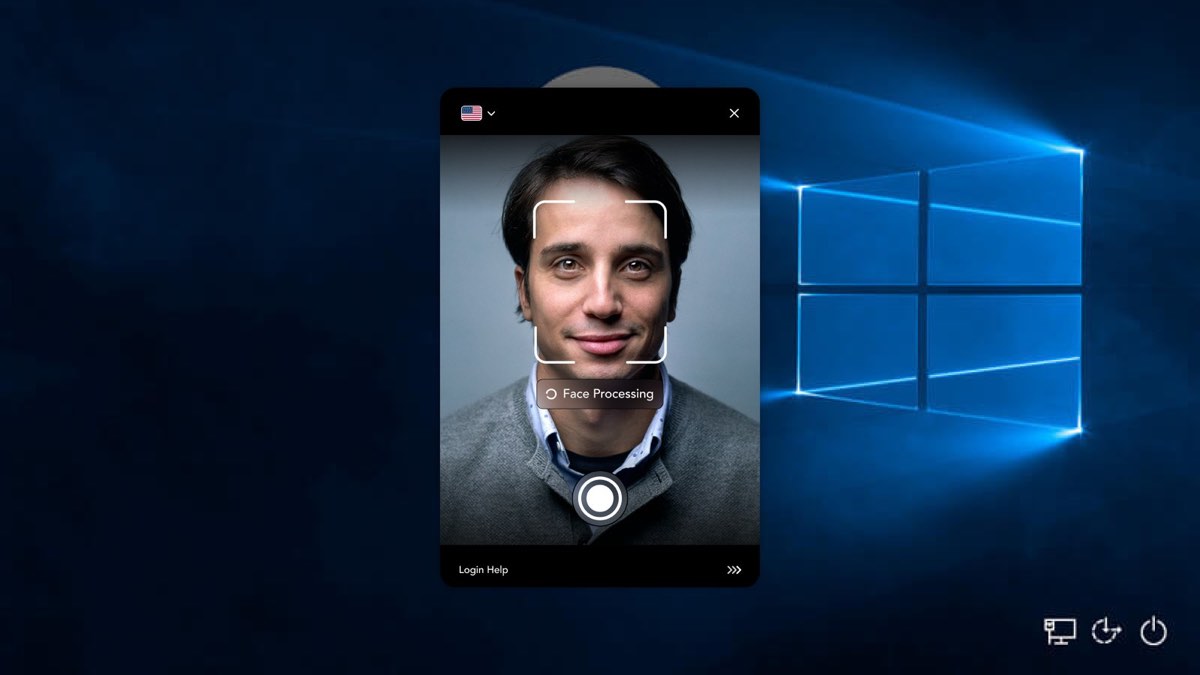
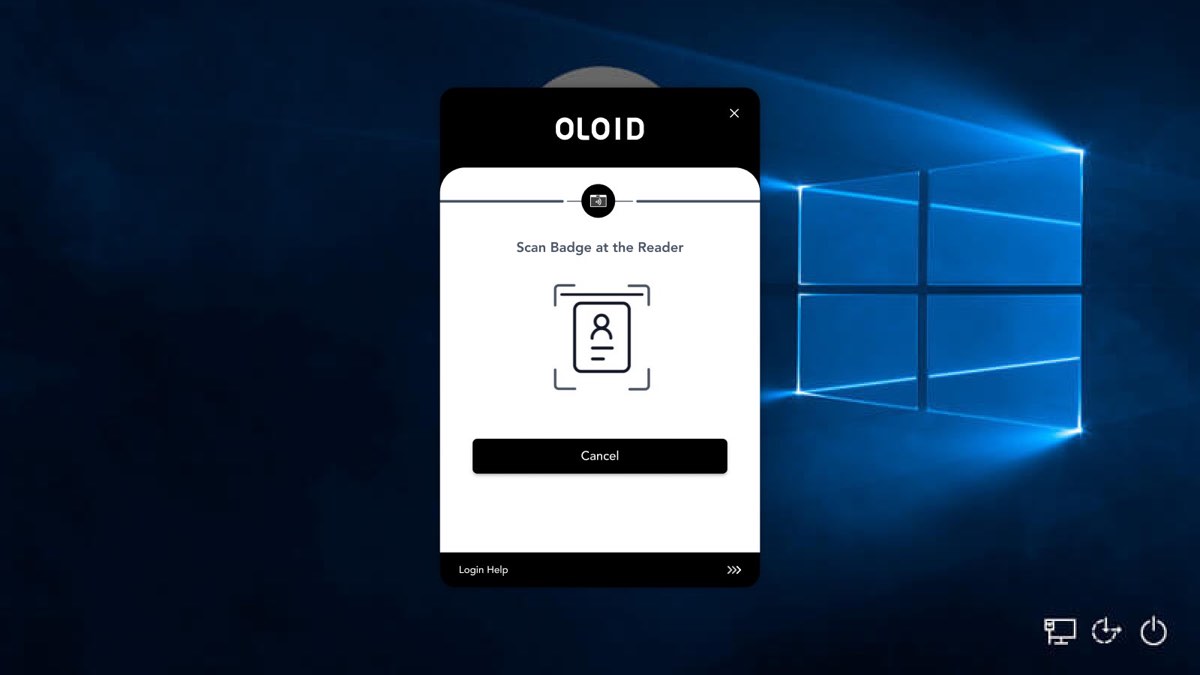
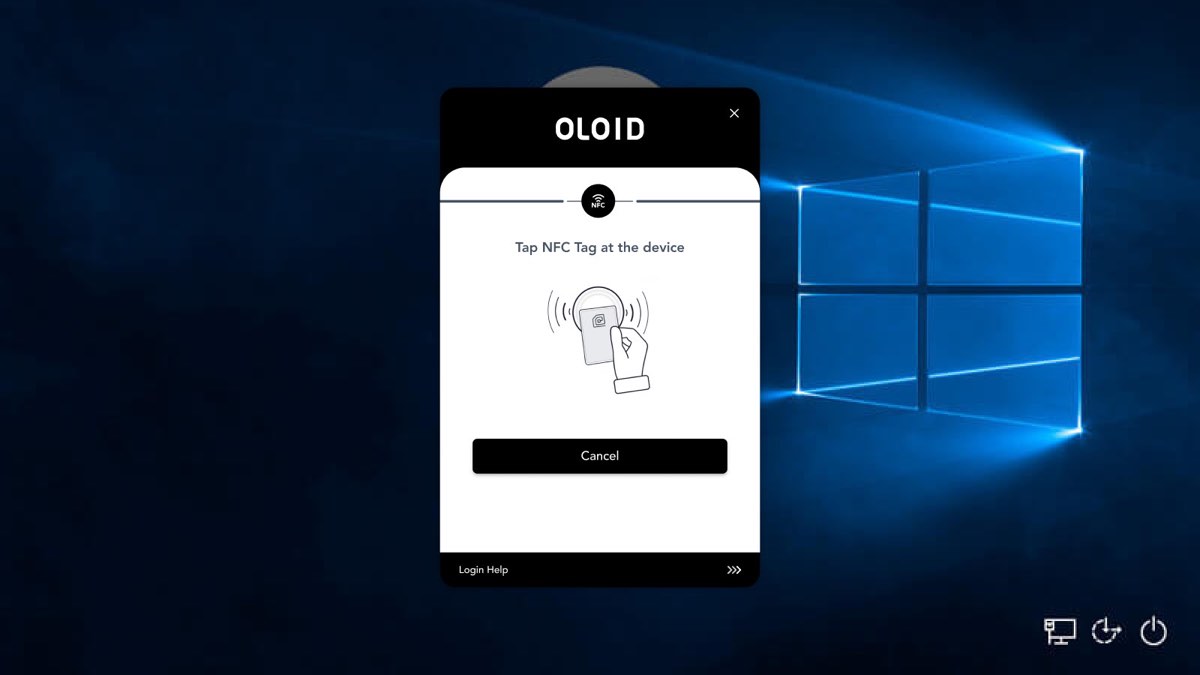
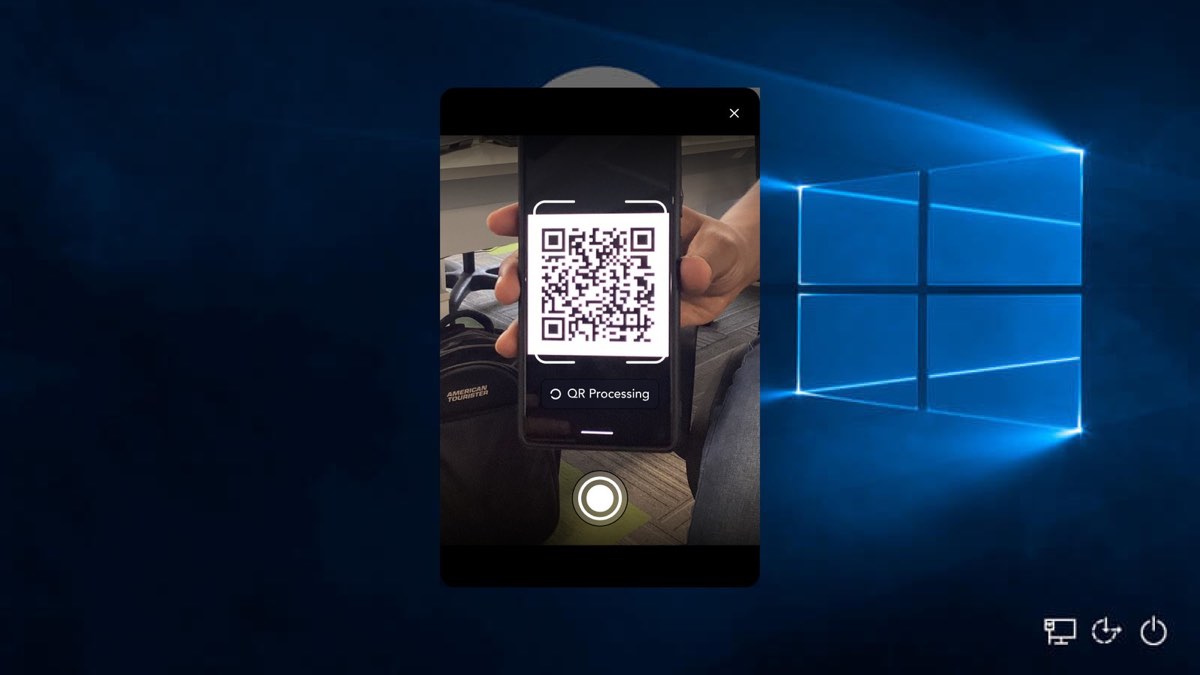
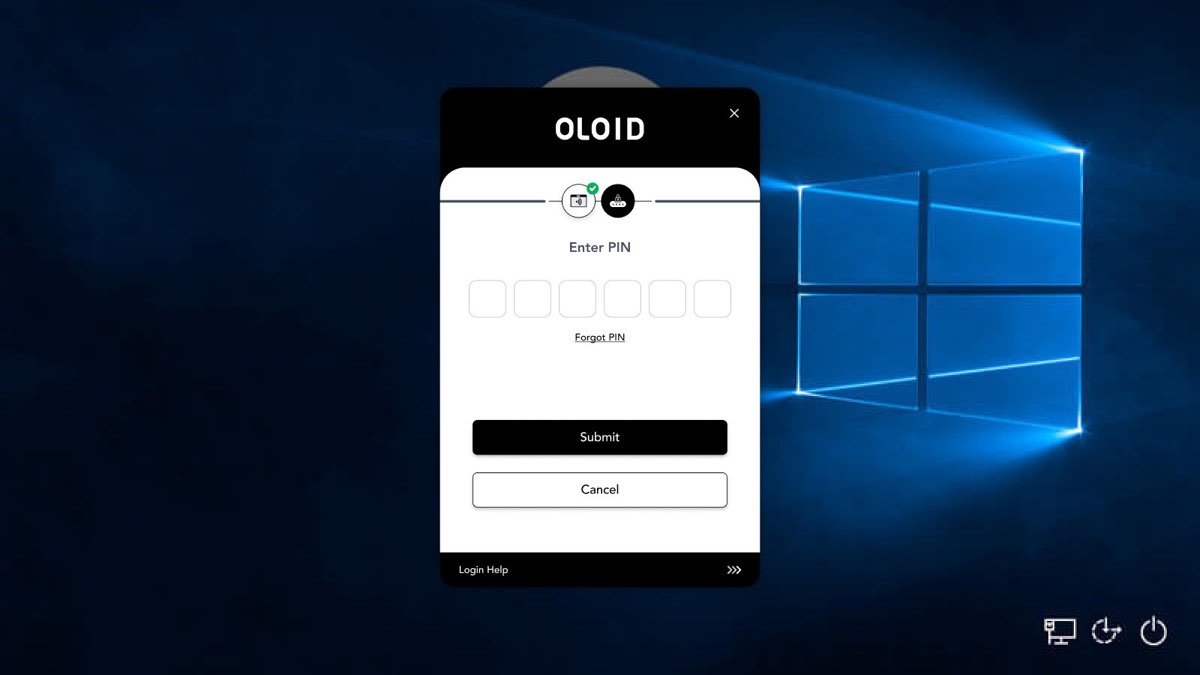
Face capture in the OLOID widget with the face framed and a Face Processing indicator. The widget prompting Scan Badge at the Reader. The widget prompting Tap NFC Tag at the device. The widget reading a QR code held up on a phone screen. The widget asking for a six digit PIN after a badge scan succeeded.

Face. The workstation camera captures on its own or on the shutter button. On-screen guidance tells the worker when their face sits inside the frame.

Certificate-based login

Smart cards, where the certificate is the credential.

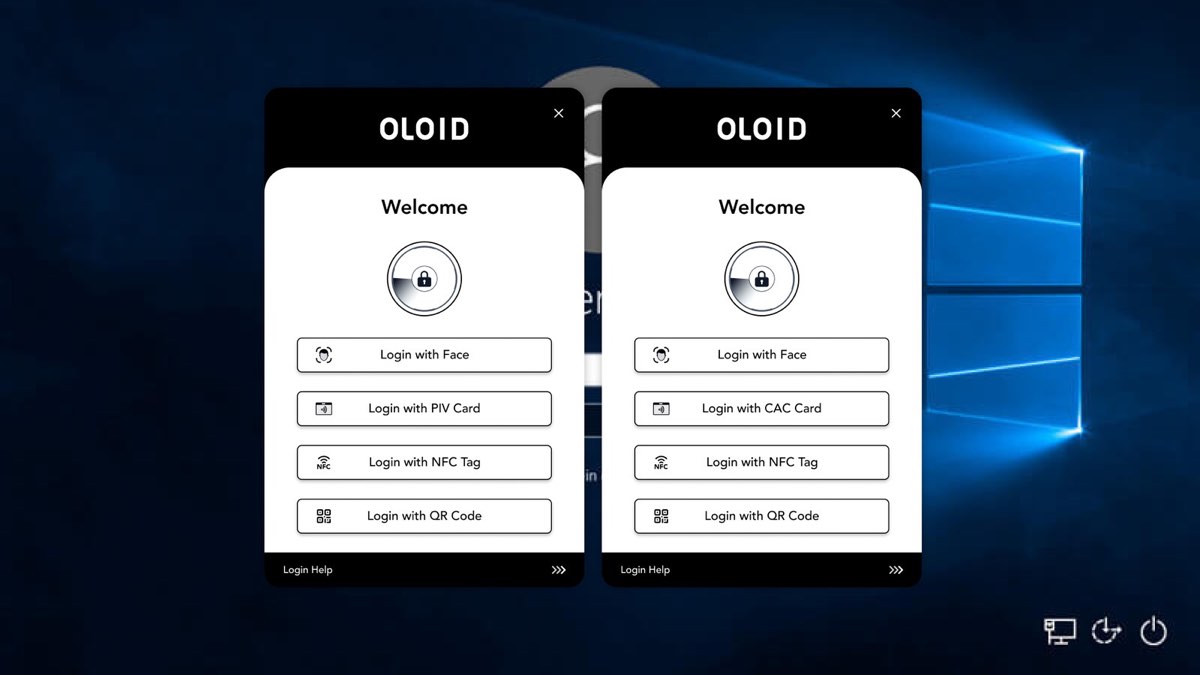
On sites that issue PIV or CAC cards, the card itself signs the worker in: OLOID reads the certificate from the chip, checks it against the issuing authority, and maps it to the Windows account. The card stays the source of trust — the same one that already governs doors and email.

Two OLOID widgets side by side on Windows lock screens: one offering Login with PIV Card, the other Login with CAC Card, both alongside Face, NFC Tag and QR Code.
04The same widget labelled for a PIV deployment and for a CAC deployment.

The sign-in, end to end

Four steps, and most workers only see two.

Step-up and account selection appear only when policy asks for them. A single-factor, single-account sign-in is a tap and a look.

  1. STEP 01

    Wake the workstation

    The OLOID widget takes the lock screen and shows the factors this device allows.

  2. STEP 02

    Present a credential

    Face, badge, NFC tag, QR code or PIN. The widget marks each completed factor with a tick.

  3. STEP 03

    Step up, if required

    A PIN, the Windows password, or an MFA push from Duo, Okta or Ping.

  4. STEP 04

    Land on the right account

    One account signs in directly. Several, and the worker picks from a named list.

See it running

Watch a worker sign in.

Screen captures from a working deployment — three of the credential factors, and the hand‑off that carries the same sign‑in into an SSO session in the browser.

Face. A worker looks at the workstation camera. On-screen guidance confirms the frame, then Windows opens.

Video loads only when you press play.

Second factor

Chain a second factor — including the password.

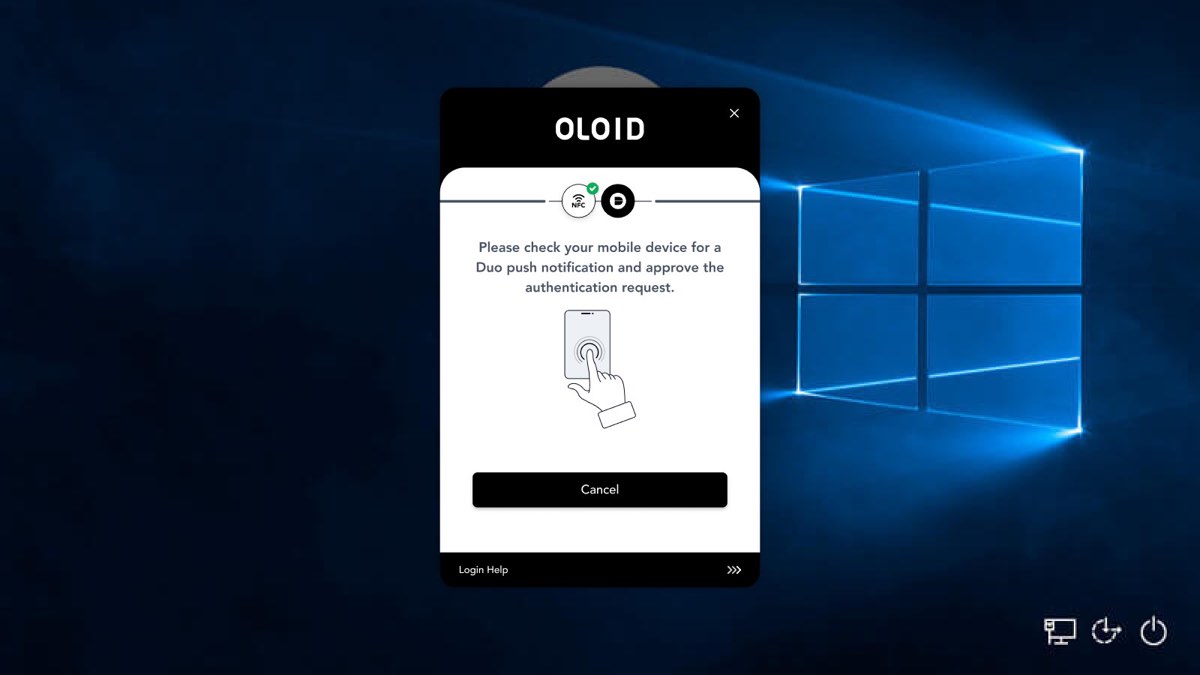
The widget hands off to whatever the site already runs and waits for the result — here, a Duo push approved on the worker's phone. The Windows password can serve as that second step too: OLOID validates it behind the first factor, so the password stops being the way in and becomes a check.

  • Duo
  • Okta
  • Ping
  • Windows password
  • PIN
  • Card PIN
  • The header strip shows every factor in the chain and ticks them off as they pass.
  • A failed or expired step returns a specific message, not a generic denial.
The widget waiting on a Duo push notification after an NFC factor has passed.
05NFC ticked, Duo push pending.

Shared workstations

One worker, several accounts, one identity behind all of them.

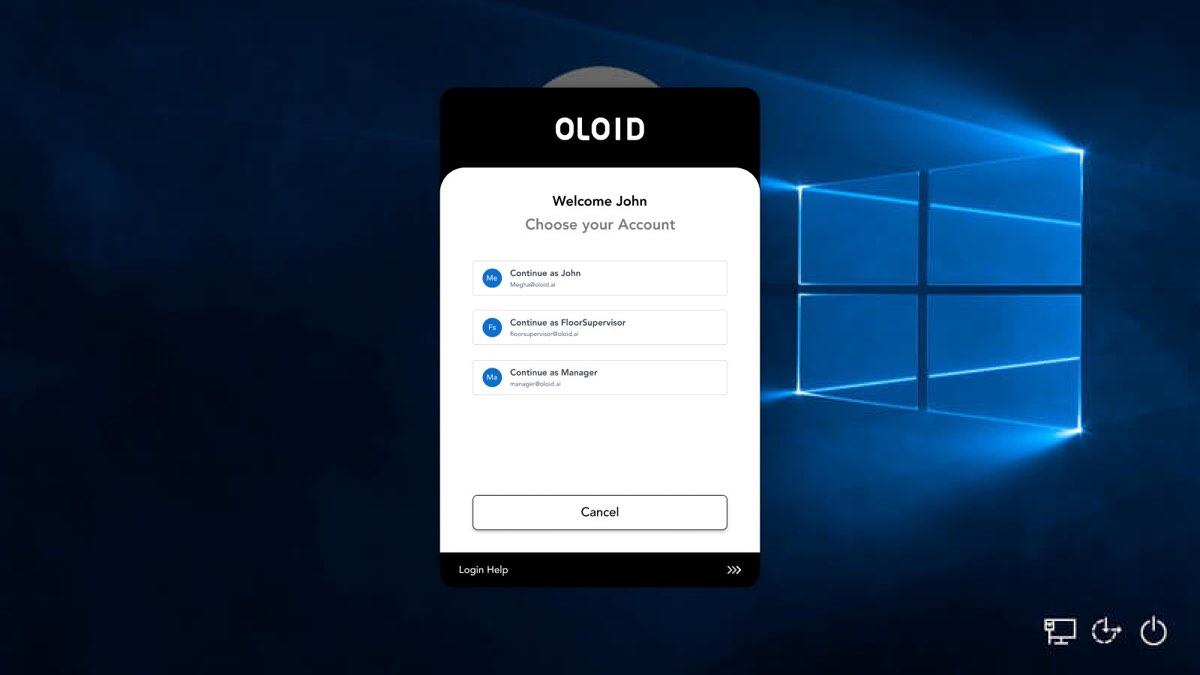
On a shared floor terminal a worker may be entitled to their own account and to a role account. After the credential passes, the widget lists only the accounts that worker is authorised for, named and labelled.

  • No shared password is typed, shown or shoulder-surfed.
  • The role session stays attributable to the person who authenticated.
After sign-in, the widget offers Continue as John, Continue as FloorSupervisor, or Continue as Manager.
06Account selection after a successful identification.

Enrollment

Workers enrol themselves, at the machine.

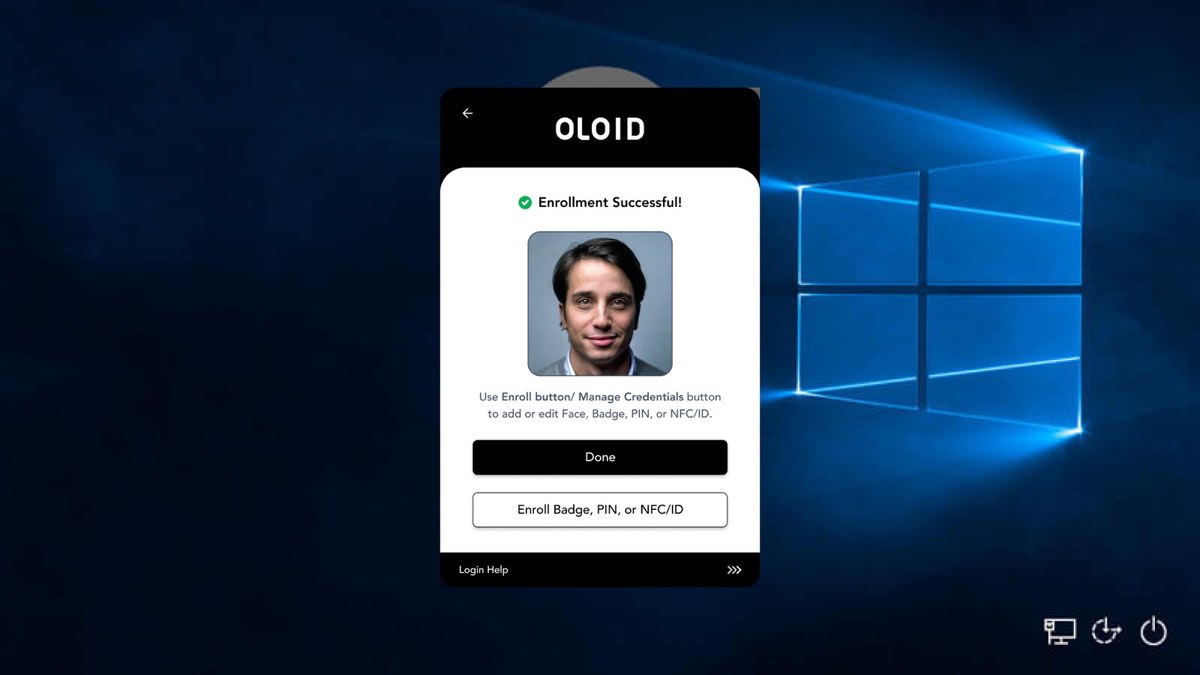
Enrollment runs inside the same widget on the lock screen: consent, capture, confirmation. There is no separate portal to visit and no ticket to raise for a re-enrol after a new badge or a new phone.

  • Face, badge, PIN and NFC/ID all enrol through the same flow.
  • Manage Credentials lets a worker add or replace a factor later from the same screen.
Enrollment Successful screen showing the captured face image and buttons to finish or enrol another credential.
07Self-service enrollment, confirmed on the lock screen.

Make it yours

Your logo, your colours, your wording.

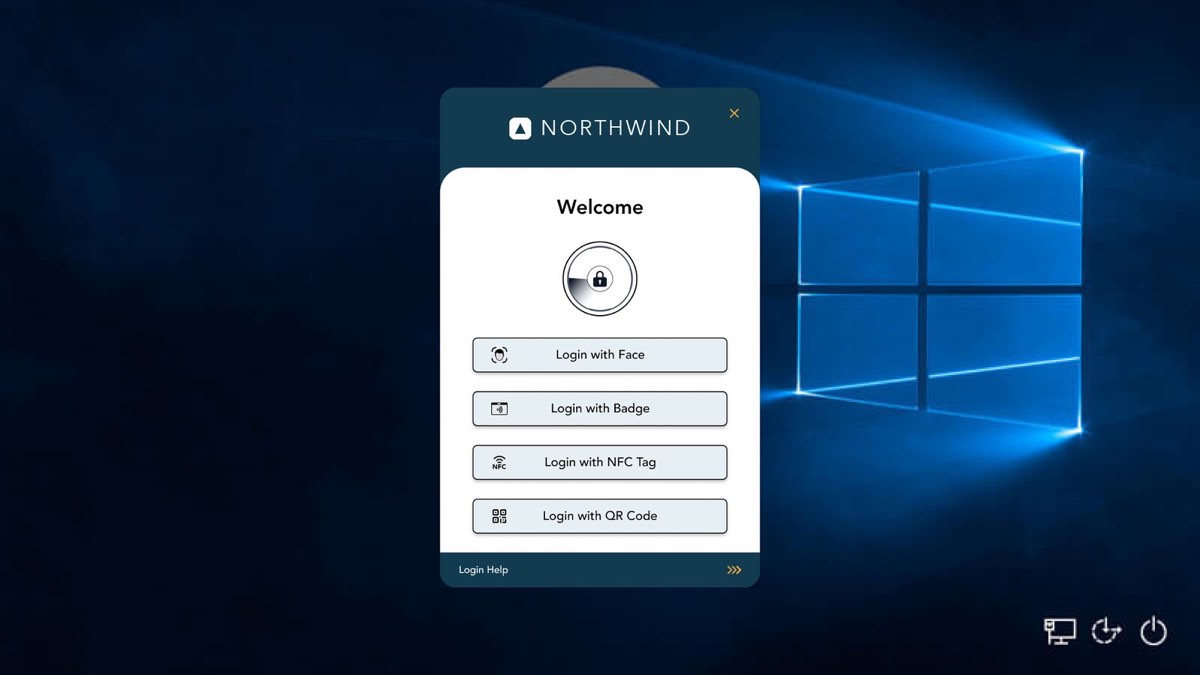
Header, footer, buttons and text take the customer's own brand, so the first screen of a shift belongs to the company that owns the floor rather than to OLOID. Shown here for a fictional customer, Northwind.

  • Logo, chrome colour, button fill and accent are all set per deployment.
  • The theme carries across every screen in the flow, including errors.
  • Workers switch language from the widget header; the list is per-deployment.
The OLOID widget rendered in a fictional customer's brand: a deep petrol header carrying a Northwind logo, tinted buttons and amber accents.
08The same build, wearing a customer's brand.

At a glance

What the client does.

Runs asA Windows credential provider on the lock screen, alongside password and Windows PIN.
FactorsFace, physical badge, NFC tag, QR code from the OLOID mobile app, and 4-, 6- or 8-digit PIN.
CertificatesPIV and CAC smart cards read at the workstation's own reader, with the button labelled to match the deployment.
Second factorAny factor can be chained, as can the Windows password. MFA providers such as Duo, Okta and Ping are invoked and awaited in the widget.
AccountsDirect sign-in for a single account; a named picker when a worker holds several.
EnrollmentSelf-service on the lock screen, with consent, capture and credential management.
BrandingCustomer logo, colours and copy per deployment; language selected by the worker in the header.
RecoveryForgot PIN, on-screen keyboard, log sharing and config sync from the widget's own menu.